
SimplePlay Pro X Quick Start Guide
Welcome to SimplePlay Pro X — the professional macOS playout, compositing, and multi-display routing engine engineered for live theater, broadcast control rooms, houses of worship, and corporate AV.
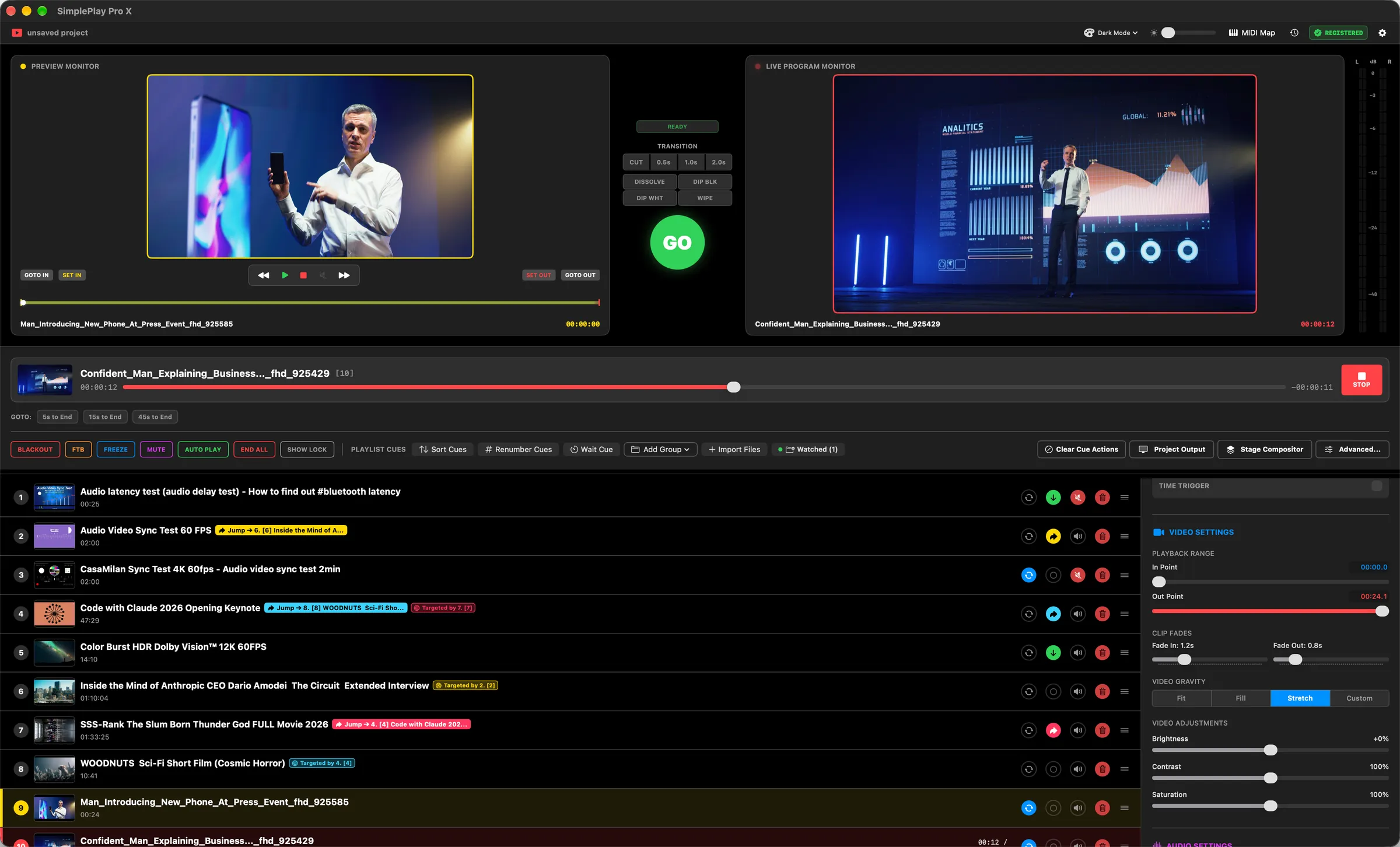
The 3-Step Live Playout Engine
Run a live show in three steps.
Signal Flow: Media Playlist ➔ Isolated Preview Bus ➔ Transition Engine ➔ Live Master Program ➔ Output Canvas
Import Media Cues
Load video, audio, graphics, or image sequences into your show playlist.
- Drag & Drop: Drop files directly into Playlist Cues.
- Import Button: Click
Import Filesin header. - Auto-Ingest: Set watchfolders in ⌘,.
Preview & Trim
Audition clips privately without affecting what the live audience sees.
- Load Preview: Click any cue. Yellow Monitor loads.
- Safe Audition: Press Spacebar to play/pause offline.
- Set Trims: Scrub & press ⌘[ and ⌘].
Take Live to Program
Send the cue to every connected screen and audio channel.
- Execute Take: Press Return or click green GO ▶.
- Live Red Monitor: Transitions instantly to Program.
- Routing: Feeds Projectors, LED, NDI, Syphon & SDI.
Transitions & Take Modes
Select how incoming preview cues transition into the live program broadcast.
⚡ Instant Cut & Timed Dissolves
Switch between Cut for a hard cut, or select 0.5s, 1.0s, or 2.0s duration presets for automated optical crossfades.
🎨 4 Broadcast Wipe Engines
Choose between DISSOLVE (smooth crossfade), DIP BLACK (theatrical fade-to-black), DIP WHITE (high-energy flash), or WIPE (directional slide).
Press D on any cue to toggle Auto-Follow. When enabled, the playlist automatically advances and executes the next cue transition the moment the current clip reaches its out-point.
Emergency & Show Panic Controls
Instantly regain complete control during unexpected stage or live broadcast emergencies.
Output Patch Bay in 60 Seconds
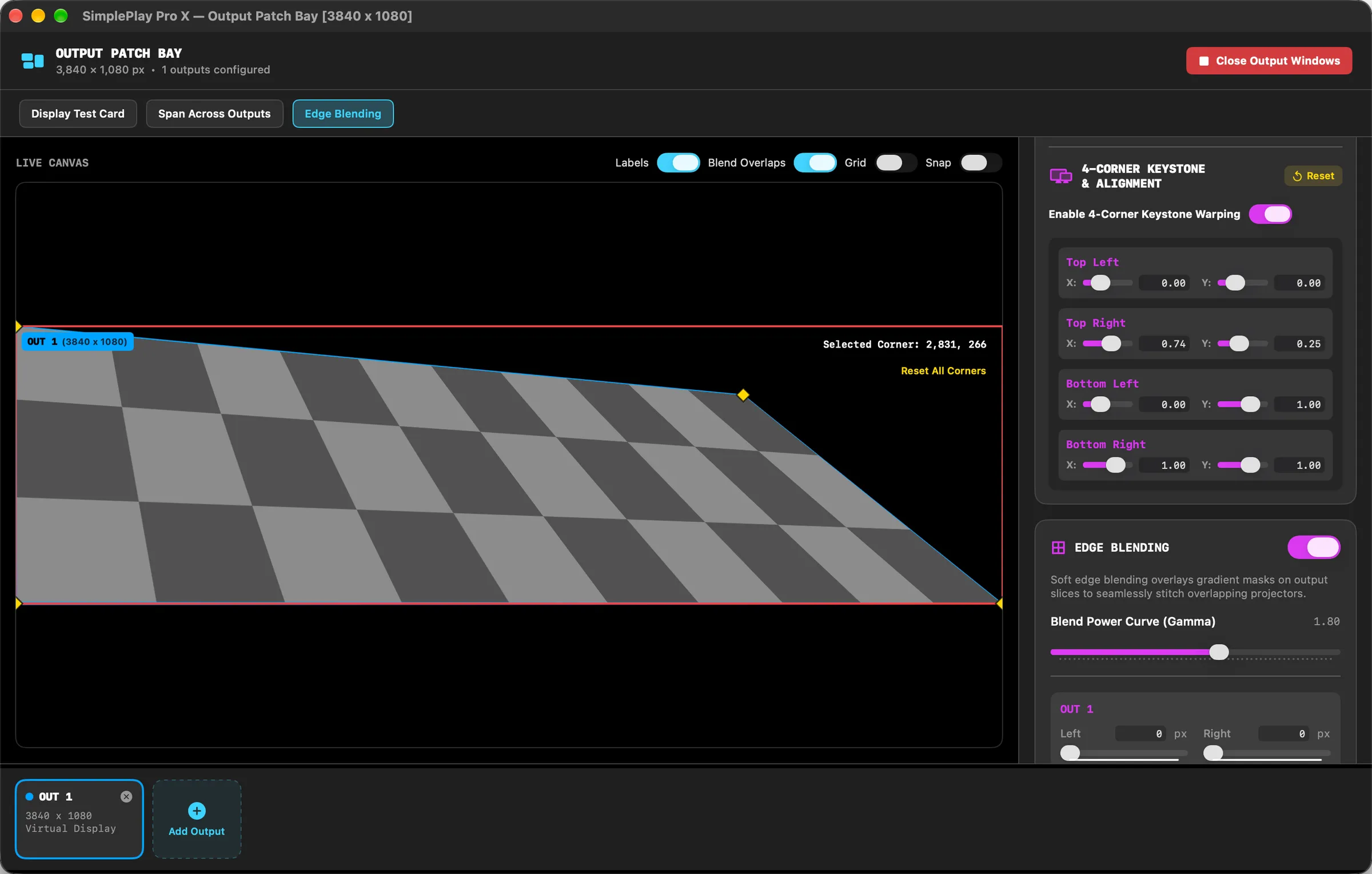
Press ⌘ + ⇧ + M to launch the hardware routing matrix, keystone warping, and test generator.
1. Assign Displays
Route to physical screens or select Virtual for floating rehearsal windows.
2. Keystone Warping
Drag corner pins directly on canvas for off-axis projectors and curved surfaces.
3. Fit & Scaling
Toggle Fit, Fill, Stretch, or Custom Zoom with real-time HUD.
4. Multi-Screen Span
Split a master canvas across multi-projector video walls with soft edge-blend masks.
5. 24 Test Cards
Monoscope, Color Bars, Alignment Grids, Safe Zones, and motion sync tests.
6. Audio Tone Generator
400Hz, 1kHz, 5kHz sine waves, sweeps, and Pink/White/Brown noise generator.
Stage Compositor Quick Start
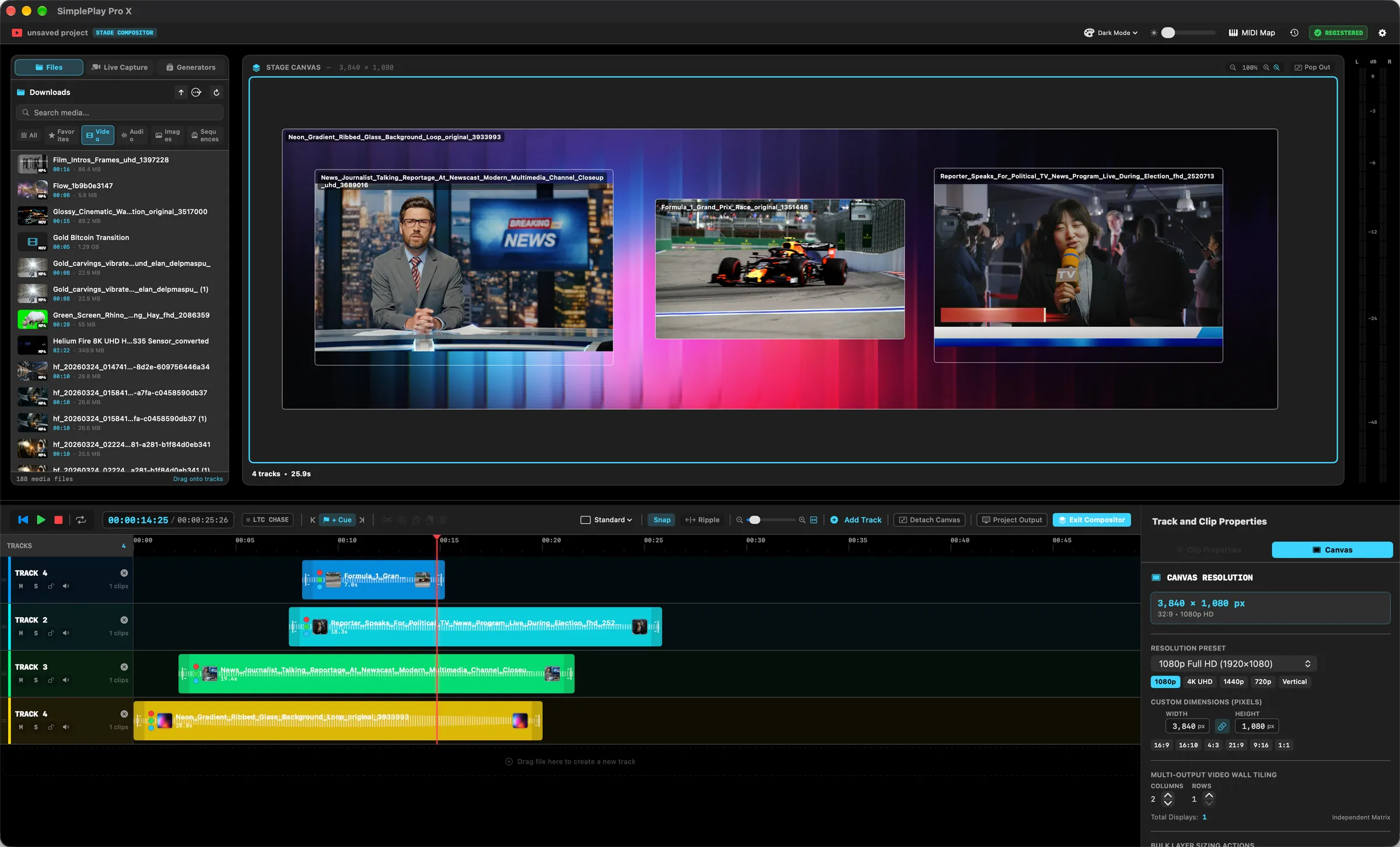
Press ⌘ + ⇧ + E to open the multi-track non-linear layer compositor and animation suite.
📁 3-Tab Media & Live Ingest
Files: Drag video, audio, and image assets onto tracks.
Live Capture: Layer USB3 / Cam Link 1080p60 cameras directly.
Generators: Drag live color solids, grids, and test patterns.
🎛️ Multi-Track Timeline & Snapping
Layer media across Tracks 1–4+ with video thumbnails and audio waveforms. Toggle magnetic snapping with S and razor split clips with ⌘B.
🖼️ 9 Instant PIP Layout Presets
Select any clip and apply instant Picture-in-Picture layout presets: Top-Left, Top-Right, Bottom-Left, Bottom-Right, Split Left/Right, or Fit Canvas.
📈 Bezier Curve Keyframe Automation
Unfold the curve drawer to draw smooth bezier automation curves for layer opacity, audio volume, scale, and screen position over time.
Master Keyboard Shortcuts Cheatsheet
Keep these essential hotkeys within reach for high-speed live show execution.
| Action | Shortcut | Description |
|---|---|---|
| Take / Go Live | Return or Enter | Transitions loaded Preview cue live to Program |
| Stop All (Panic) | Escape | Immediately fades and halts all active program playback |
| Play / Pause Preview | Spacebar | Auditions or pauses selected cue in Preview monitor |
| Set Cue In-Point | ⌘ + [ | Trims clip start to the current playhead position |
| Set Cue Out-Point | ⌘ + ] | Trims clip end to the current playhead position |
| Reset Trim Range | ⌘ + \ | Restores clip to native full duration |
| Select Next / Prev Cue | ↓ / ↑ | Navigates up and down the playlist cue stack |
| Toggle Loop | L | Enables/disables continuous looping on active cue |
| Toggle Auto-Follow | D | Auto-advances and triggers next cue on completion |
| Output Patch Bay | ⌘ + ⇧ + M | Opens display routing, keystone, and virtual monitors |
| Stage Compositor | ⌘ + ⇧ + E | Opens multi-track non-linear timeline editor |
| Preferences | ⌘ + , | Opens audio matrix, NDI, DMX, OSC & MIDI settings |
| Split Clip (Compositor) | ⌘ + B | Splits selected timeline clip at playhead |
| Toggle Snapping | S | Toggles magnetic snapping on timeline clips |
Pro Production Best Practices
🔒 Safe Rehearsals with Virtual Displays
In Output Patch Bay (⌘⇧M), set any display output to Virtual. This creates a floating canvas window on your Mac screen, allowing full rehearsal of complex multi-screen shows without physical projectors connected.
💾 Your Show Is Protected on Quit
Closing the app checks before you lose anything. Unsaved cues prompt to Save, Don't Save or Cancel; if program output is still live you get a separate warning before it goes down. Cancel always puts you back exactly where you were. With nothing unsaved and nothing live, it just quits.
📂 Watchfolder Auto-Ingest
Configure a dedicated show drop folder in Preferences ➔ Watchfolders. When lighting designers, video editors, or clients drop new video renders into the folder over the network, SimplePlay Pro X imports them automatically.
Join the Operator Discord Community
Need help dialing in your multi-display canvas, Dante audio matrix, or Stream Deck profile? Connect directly with our core engineering team.